

Introducing EXPLORE
The EXPLORE tool is the core of the Industry Engine application. Here, you can create, view, and refine company lists to suit your needs. You can use EXPLORE in a number of ways: You can use EXPLORE in a number of ways:- From scratch - Use filters to define a list directly in EXPLORE..
- From an RTIC or IS8 sector - Navigate directly to an RTIC or IS8 sector to view its member companies in EXPLORE.
- From ANALYSE - Take your results from ANALYSE and view them as a list of companies in EXPLORE.
Key features
Get to know the key features of the tool below:1. Explore header
The top header section contains several tools and options for interacting with your results and customising your view.
- Filters button: Clicking this will open the filters panel and allow you to refine your company search. See more about using our products filters here.
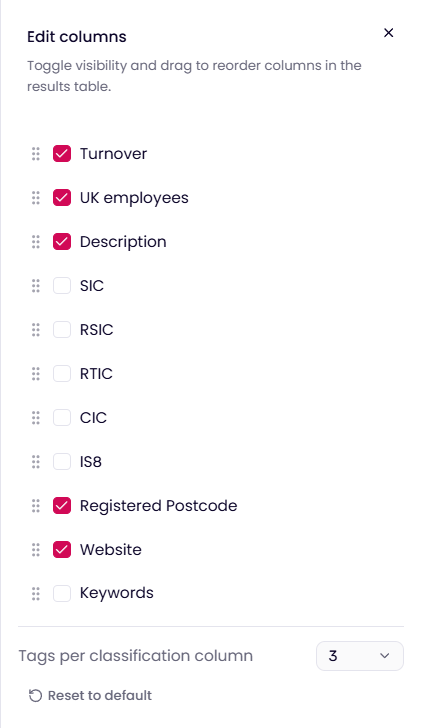
- Options button: This opens a popup with several options: download your current results, save your current query as a new Explore list, or load a previously saved list. You can also select “Edit columns” to toggle the visibility of fields and reorder them in the results view. Simply check or uncheck a field to show or hide it, and drag to reorder, giving you full control over how your results are displayed. For more on downloading data see here.
- Analyse button: Take your current search and visualise summary statistics of your company list using our Analyse tool.
- Company search bar - Use this to quickly search for a specific company. Results are returned based on company name, company registration number (CRN), or company website.
- Sort dropdown - This dropdown lets you sort the dataset by different parameters, including employee count, turnover estimate, and incorporation date. By default, results are sorted by employee count, prioritising companies with a matched website.
- Results view toggle: Switch between a table view and a card view. See more below.
- Filter tags: Quickly see which filters you have active, or use common filter actions such as accessing our company classifications (RTICs, RSICs and IS8s) or clearing all filters.
2. Results section
Your results can be displayed in either a table or card layout.Table layout
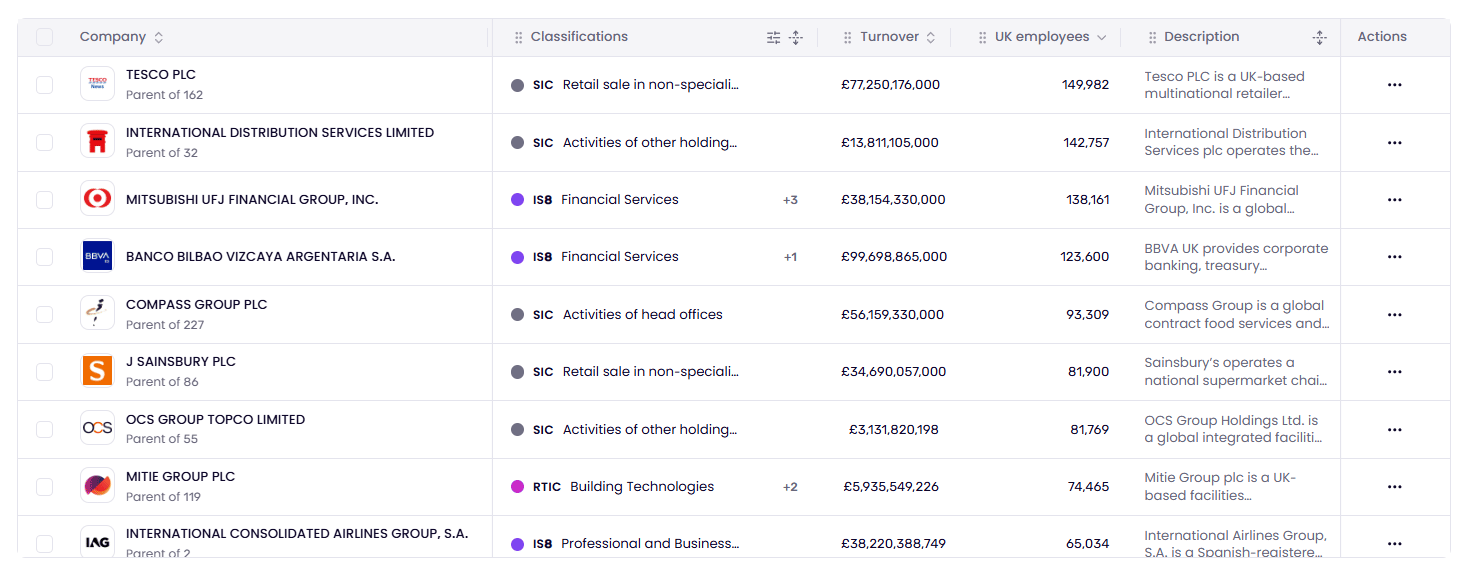
This is the default layout in the Explore tool. Table view lets you see a large number of companies and data fields on a single page, and is fully customisable to suit your needs.- Resize columns - Click and drag a column’s outer edge to adjust its width.
- Sort columns - For numerical fields such as employee count and turnover, click the chevron icon in the column header to sort. Click again to toggle between ascending and descending order.
- Reorder columns - Click and hold the drag handle in a column header, then move it to reposition the column.
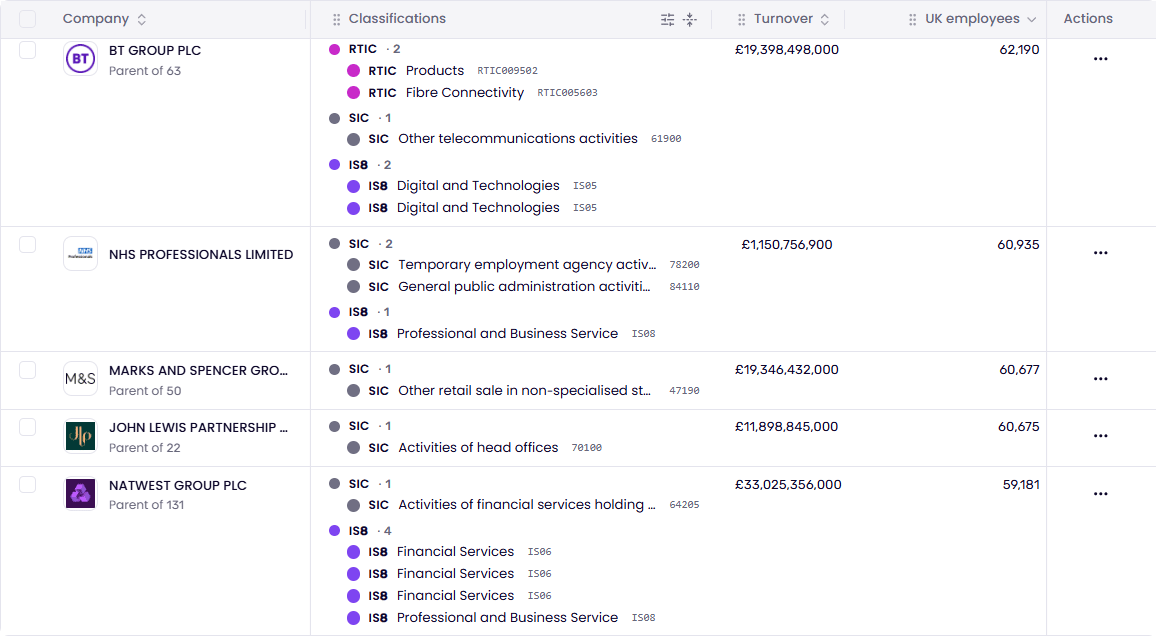
- Click the expand cells button in the Classifications column header to see full details for all companies.
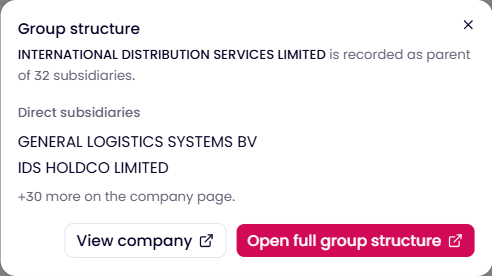
- Click the ”+#” icon in an individual company’s cell to see a popup with details for that company alone.
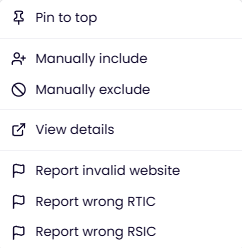
- Pin to top - Pin important companies to the top of your results.
- Manually include / manually exclude - Force a company to always be included in your results, or to never appear, regardless of whether it passes your active filters.
- View details - See more detailed data on that company in our company profile view.
- Report company - Report an issue if something doesn’t look right, such as an incorrectly matched website or classification.
- Turnover - Our best estimate of the company’s annual turnover.
- UK employees - Our best estimate of the number of people the company employs in the UK.
- Description - A short summary of what the company does.
- Keywords - The frequency of sector-specific keywords found on a company’s website. This is a quantitative measure of its association with industry trends.
- Registered Postcode - The postcode of the company’s registered location.
- Website - The company’s matched website. Click the link to open it in a new tab.
Our data: You can find out more about our data and how to use it on our data dictionary.
- Show or hide columns: Tick the checkbox next to a column to show it in the table, or untick it to hide it.
- Reorder columns: Click and hold the drag handle next to a column, then move it up or down the list to change its position in the table.
- Classification columns: As well as the combined Classifications column, you can add individual columns for each classification type: SIC, RSIC, RTIC, CIC and IS8.
- Tags per classification column: Use the dropdown to set how many classification tags are shown in each individual classification column.
- Reset to default: Restore the original column selection and order.
Card layout
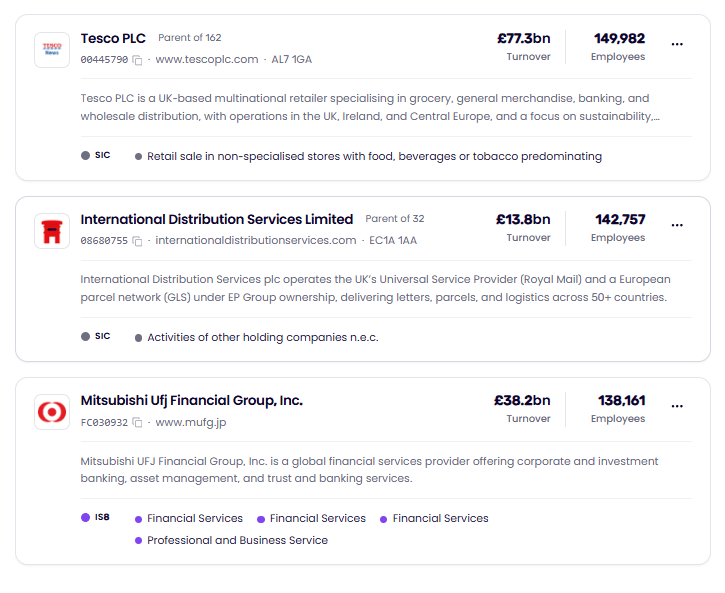
Card view shows each company as a self-contained summary card. It contains the same details as the table view, but with greater emphasis on classification details. This makes it a good option when you want to see more of a company’s classification breakdown at a glance.- Company name and logo - Click the company name to view more detailed information about that company.
- Group structure - If a company is part of a larger group, a “Parent of ##” control appears next to its name. Click it to see other businesses that share the same group.
- Company details - The company number, website and registered postcode are shown beneath the company name. Click the copy icon next to the company number to copy it to your clipboard.
- Key figures - Turnover and employee count are displayed in the top right of the card.
- Company actions - Click the options button (…) to access the same company actions available in table view, such as pinning, manually including or excluding, and reporting a company.
- Company description - A short summary of what the company does.
- Classifications - All available classifications for the company, grouped by type (for example RSICs and SICs). Each classification type is colour-coded to make them easy to tell apart.
3. Explore footer
The footer at the bottom of the Explore page shows how many companies match your search and lets you move through your results.- Results count - The total number of companies that match your current filters is shown on the left.
- Results per page - Use the dropdown to change how many companies are shown on each page. Options range from the default of 25 up to a maximum of 200.
- Page navigation - Use the arrows to move to the previous or next page, or click a page number to jump straight to it. The final page number is always shown, so you can skip directly to the end of your results.

Filters
Use the filters section to refine your results based on a range of criteria, including RTICs, RSICs, locations, keywords, financial data, companies, and growth metrics.Using filters: you can find out more about our filters and how to use them on our Using Filters page.
Building a list in EXPLORE
There are a couple of ways of creating a list of companies in Explore.Using the Search Bar
Use the search bar at the top of the Explore page to quickly find a specific company. You can search by: Company name: Start typing the company’s name and the results will automatically updated. Company number: If you already know the company’s registration number, enter it directly to jump straight to that company. Website: Enter the company’s website address to find any company matched to it.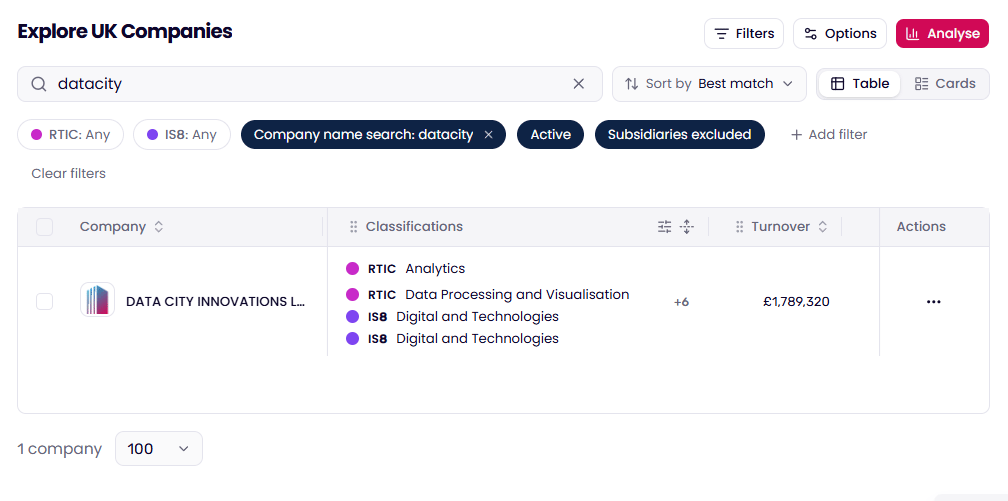
Using Filters
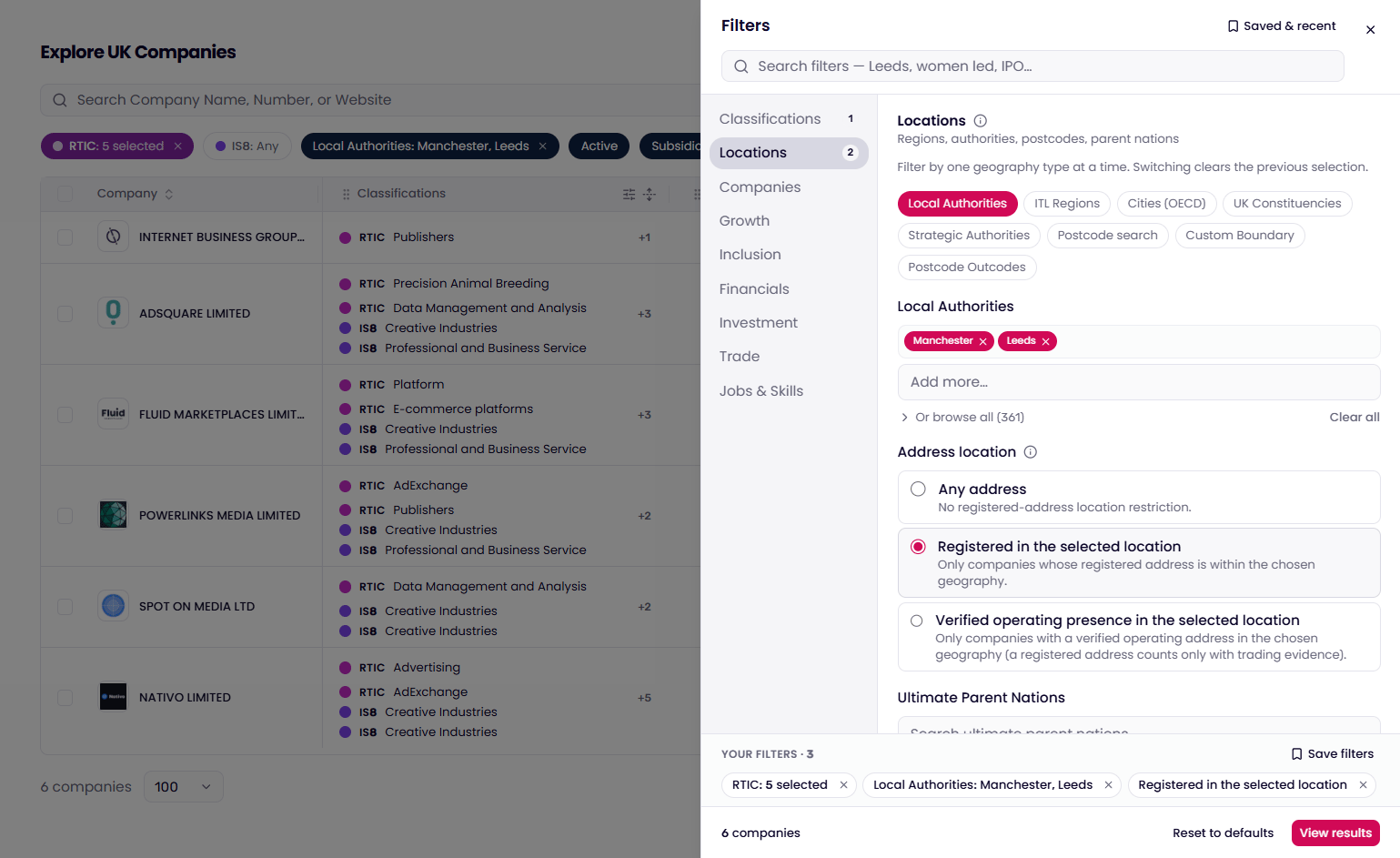
Filters are a great way to build a specific, targeted list of companies. Example: You want to find all companies that operate in the AdTech sector and are based in either Leeds or Manchester. You can do this in a few simple steps.- Select the sector. Our proprietary RTIC classifications are a great way to find companies operating in emerging sectors. Open the RTIC option in the filter menu and select the AdTech RTIC. You can find more details about RTICs here. The AdTech RTIC is divided into several verticals if you want to narrow your search further, but for this example we’ll include companies across the whole sector.
- Select the locations. Open the Locations section of the filter menu. The location filter covers a number of geographical levels, and in this case we’ll apply the Manchester and Leeds local authority filters.
- Refine by address type. By default, location filtering includes both registered and operating addresses. To be more specific, turn on “Registered in the selected location” in the Address location filter.
Using filters: For more on Filters, view our full guide here.
Company pages
Clicking a company name opens its profile view, giving you a full picture of that business in one place.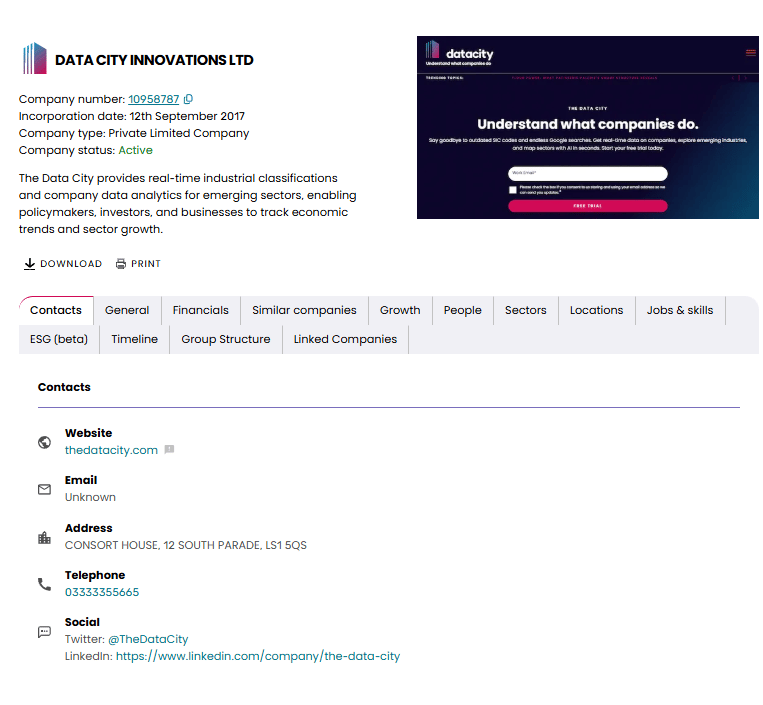
Overall, Explore offers a straightforward way to search, filter and view company information in a number of ways, from a full table of results to a detailed individual profile. This makes it easy to conduct research, find new prospects, and build targeted lists of the companies you care about.