

Introducing Watchlists
Watchlists let you keep track of the companies and lists that matter to you. When you watch something, the Industry Engine records changes to its companies, such as new directors, accounts filed or funding received. You can watch four kinds of thing:- Companies: individual companies you add from their company page.
- RTICs: an RTIC sector or vertical, so you see changes across its member companies.
- EXPLORE lists: a saved list from EXPLORE.
- Smart Lists: a saved Smart List.
Watch a company, RTIC, Explore List or Smart List
Look for a Watch button or an Add to watchlist option. Once you are watching something, the button changes to Watching. Click it again to stop watching.Companies
Open a company’s page and click Watch next to its name. The company is added to your watchlist, and you see its changes on the Companies tab.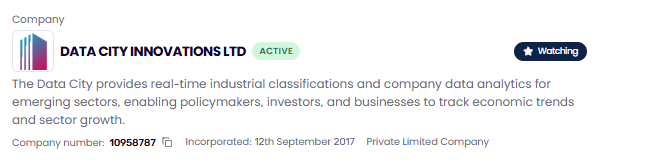
RTICs
Click RTICs in the navigation menu, then click Watch next to an RTIC sector or vertical. You can watch a whole sector or a single vertical.
EXPLORE lists
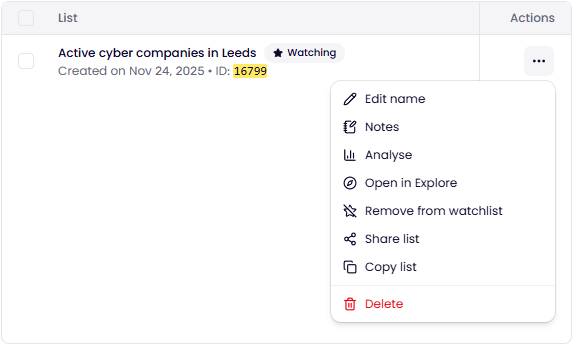
You can watch a saved EXPLORE list in two ways:- On the All Explore Lists page, click the options button next to a list and choose Add to watchlist.
- With a saved list open in EXPLORE, click Watch in the list toolbar.
Smart Lists
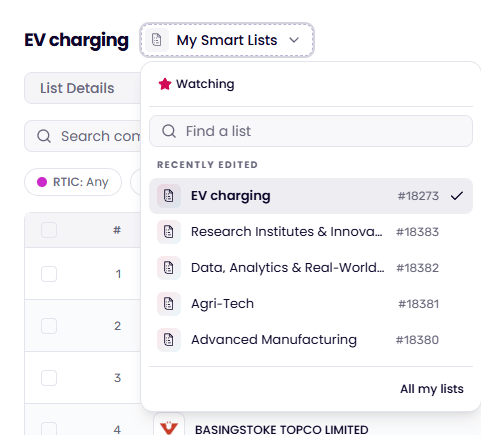
You can watch a saved Smart List in two ways:- On the Smart Lists page, open a list and click Watch in the list menu at the top.
- In My Lists, click the options button next to a list and choose Add to watchlist.
Watchlist limits
There is a limit on how many companies you can watch in total, and on how many RTICs, EXPLORE lists and Smart Lists you can watch. RTIC sectors and verticals count towards the same limit. Each tab on the Watchlists page shows a meter with how many you are watching out of your limit. When you reach a limit, you see **Limit reached. In this case, remove something from your watchlist to make room.
The Watchlists page
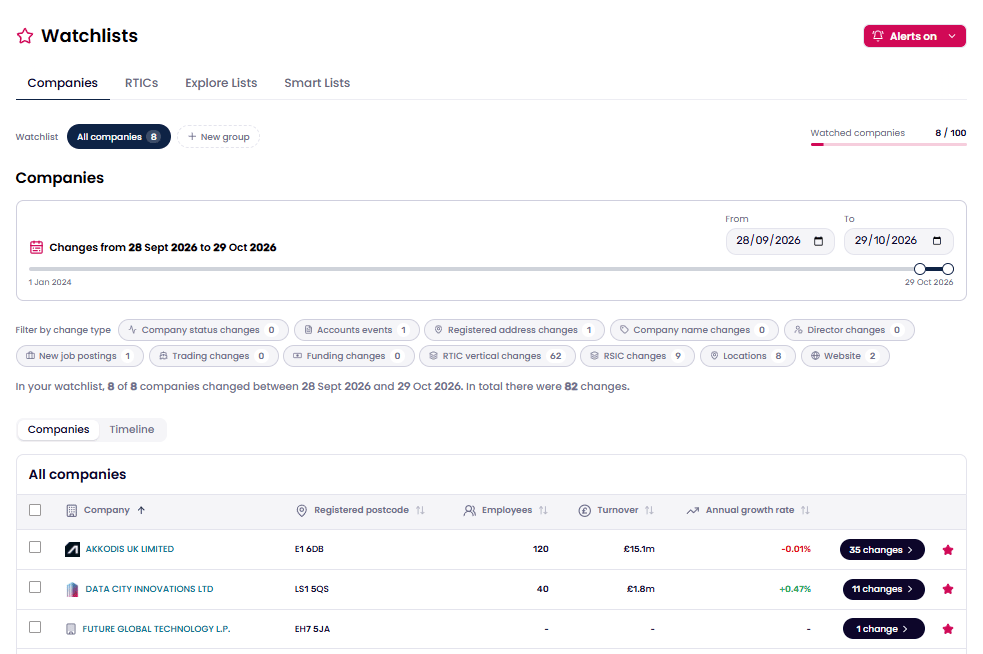
The Watchlists page has four tabs: Companies, RTICs, Explore Lists and Smart Lists. The page’s web address updates as you change tab, date range or filters. You can bookmark it to come back to the same view.Companies tab
The Companies tab shows every company you watch in All companies. You can also sort the companies you watch into groups, for example customers or competitors.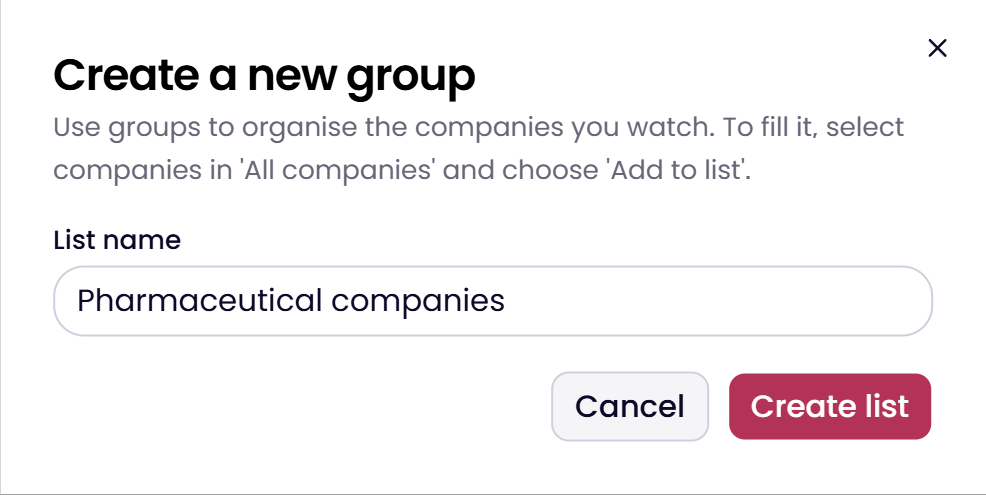
1
Start a new group
Click New group in the Watchlist bar at the top of the tab.
2
Name it
Enter a List name and click Create list.
3
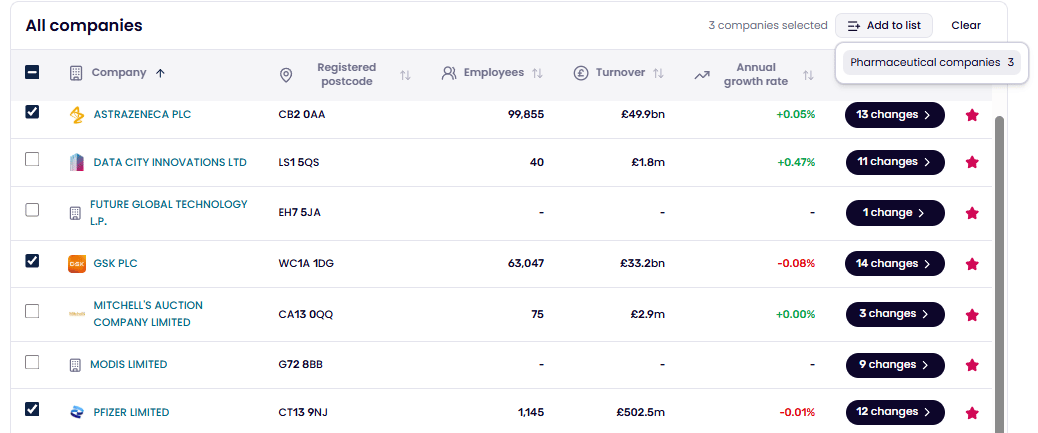
Add companies
Select All companies, tick the companies you want, then click Add to list and choose your group.
- Rename group: enter a new Group name and click Save changes.
- Delete group: confirm with Delete group. You can’t undo this.
RTICs, Explore Lists and Smart Lists tabs
These tabs list everything you watch of that type down the left-hand side. RTICs are tagged as being a Sector or Vertical.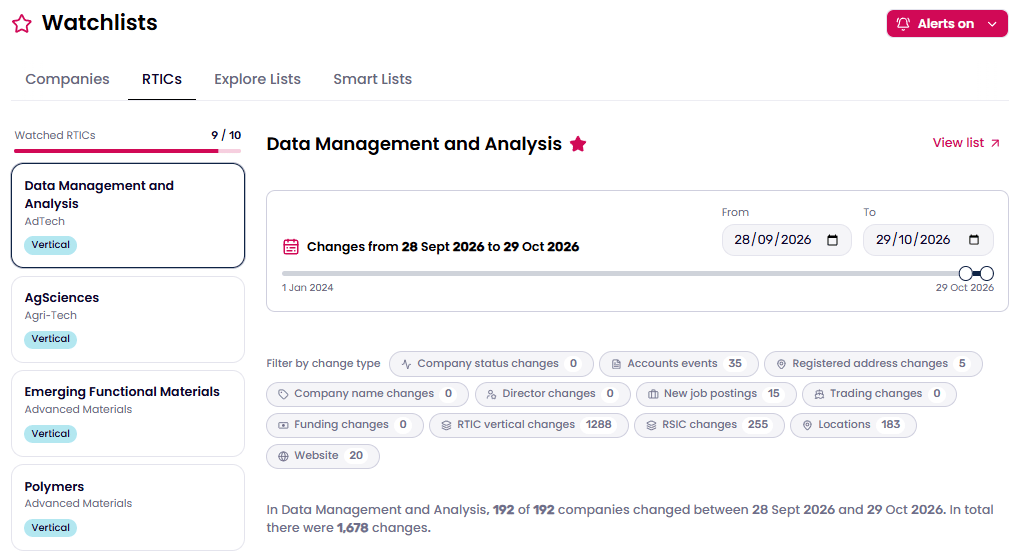
See what has changed
Each tab shows the same tools to help you review changes.Date range
Use From and To, or drag the slider, to choose the period you want to see. By default, the page shows changes from the last month. You can see changes all the way back to 1st January 2024.Summary
A sentence above the results tells you how many companies changed and how many changes there were in the period. When you apply filters, the summary counts only the filtered changes.
Filters
Use Filter by change type to show only the changes you care about. Each filter shows how many changes it covers. Click Reset Filters to clear them.
Companies and Timeline views
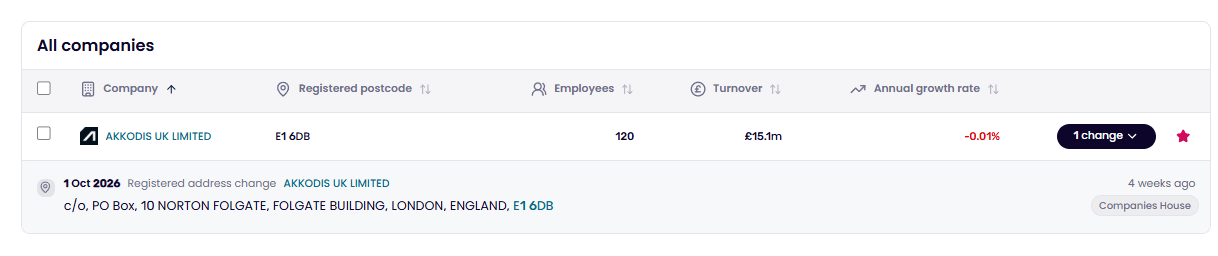
Switch between two views:- Companies: a table of companies with Company, Registered postcode, Employees, Turnover and Annual growth rate. Click a column heading to sort by it. Click the number of changes on a row to see each change for that company.
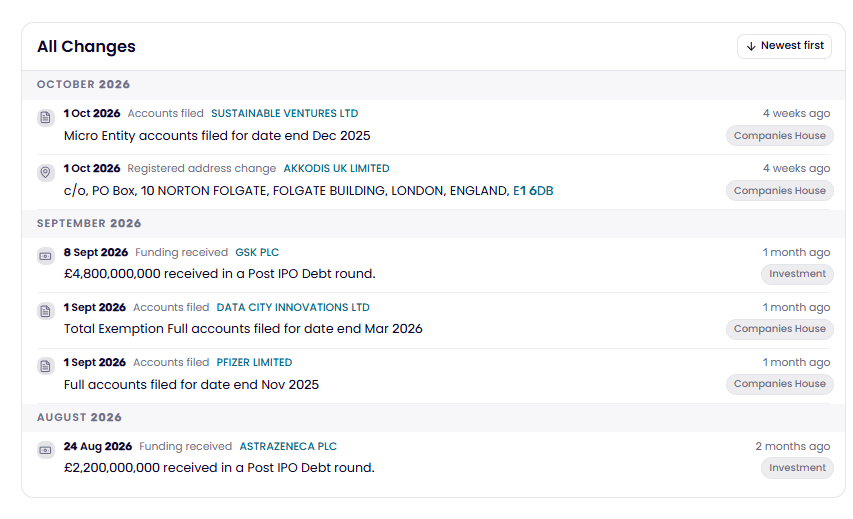
- Timeline: All Changes in date order, newest first. Use the sort button to show the oldest first. Changes from today are labelled Today.
Types of change we track
Watchlists track these types of change:Change types that need a premium licence
Some change types depend on data that is part of a premium licence. New job postings and RSIC changes show a lock icon if your licence doesn’t include them. Click a locked filter to find out how to upgrade.Set up alerts
Alerts tell you about changes without opening the Watchlists page. You need to watch at least one company, RTIC or list first. Until you do, the Set up alerts button is greyed out.1
Open the alert setup
On the Watchlists page, click Set up alerts.
2
What to watch
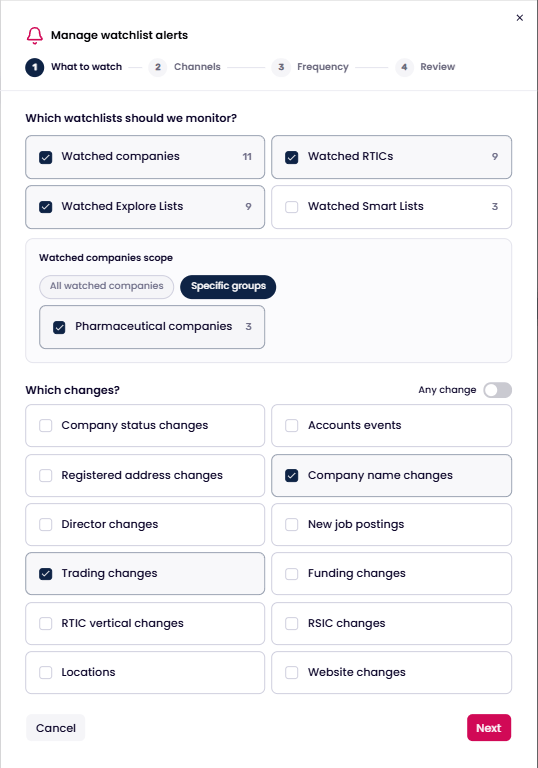
Under Which watchlists should we monitor?, choose from Watched companies, Watched RTICs, Watched Explore Lists and Watched Smart Lists. For companies, choose All watched companies or Specific groups. Under Which changes?, leave Any change on, or turn it off and pick the change types you want.
3
Channels
Choose Email, In-app or both. You must choose at least one.
4
Frequency
Choose Weekly digest or Monthly digest. Pick the Day (for weekly) or Day of the month (for monthly), and a Send time.
5
Review
Check your choices and click Finish.
Alert emails
When you save your alerts, we send you a confirmation email. It sums up what you are watching, the change types, your channels and frequency, and when your next alert is due. Click Manage alerts in the email to change your settings. If you chose Email, you get a digest on your chosen schedule. It lists what has changed across your watchlists in that period. Click View in watchlist to see the changes in Industry Engine.In-app notifications
If you chose In-app, a Notifications card appears on your Dashboard. It shows one of your watchlists with recent changes, and the latest change for some of its companies.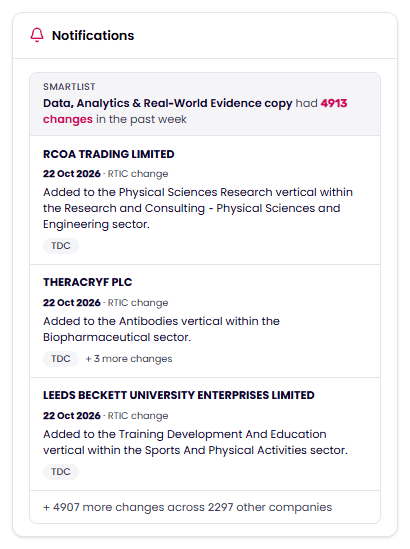
Building lists to watch: Find out how to create lists in our Using EXPLORE guide and Building a Smart List guide.